
Editing in the Block Editor
Edit text, images, backgrounds, and responsive visibility directly inside the WordPress block editor with your real CSS loaded.
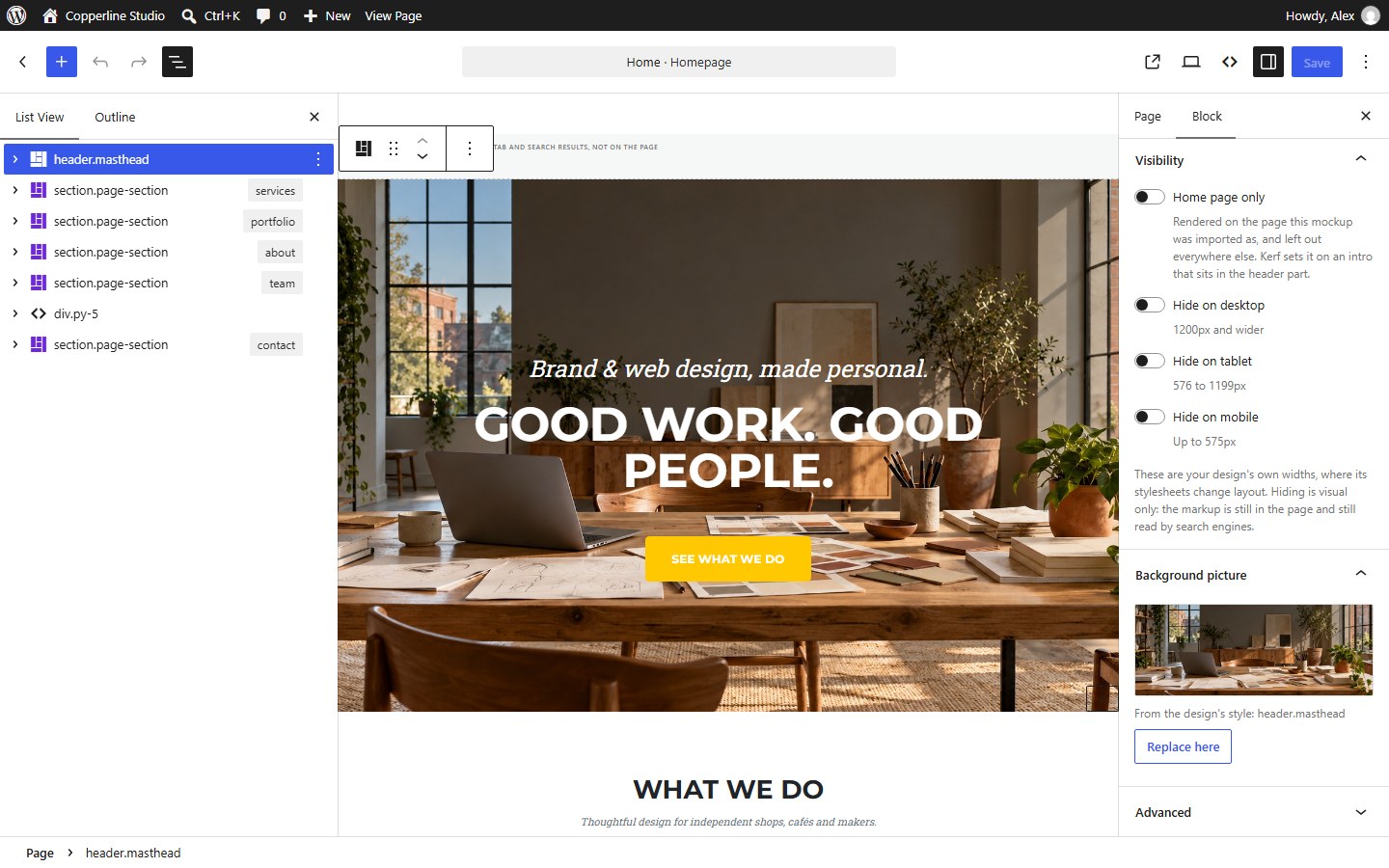
When you open an imported page in the WordPress Block Editor, Kerf loads your design’s actual stylesheets into the editor canvas. What you see while editing is your real website—not a stripped-down wireframe.
Your real design in the editor canvas
Click any heading, paragraph, button, or image to edit it in place:
- Headings & Paragraphs use native
core/headingandcore/paragraphblocks with every original class and inline style preserved, so all standard formatting tools and SEO plugins work naturally. - Images use
kerf/imagebacked by the WordPress Media Library—click any photo to swap it from your library or upload a new one while keeping the designer’s exact classes and dimensions. - Structural containers use
kerf/div, which emits the exact HTML tag (<section>,<article>,<nav>,<table>,<button>) and attributes from your mockup without extra wrapper divs.
Scroll animations & interactive UI states
Modern HTML templates rely on JavaScript that doesn’t run inside an editor canvas. Kerf solves the two biggest editing headaches automatically:
- Scroll-reveal sections are shown automatically: Templates using AOS, WOW.js, ScrollReveal, GSAP, or custom
.reveal { opacity: 0 }rules would normally appear blank in the editor. Kerf measures computed styles and displays scroll-hidden content in its settled, visible state while leaving decorative hover overlays untouched. - Dropdowns, tabs & modals open when selected: Hidden UI that should stay closed at rest (a mobile drawer, a submenu dropdown, tab panel #2, or a modal dialog) opens in its real position as soon as you select it or its parent in the editor, and closes cleanly when you click away.
List View with HTML tags & class names
Open WordPress’s List View to see your page’s exact structure. Instead of generic “Element” labels, every block displays its semantic identity—such as section#portfolio, nav.main-nav, a → /about/, or the text inside a button—with color-coded icons for landmarks, lists, links, controls, tables, and media.
Background pictures & device visibility
- Background picture panel: Select any section whose background image comes from either an inline
styleattribute or a stylesheet rule. Swap the image from the Media Library and choose whether to apply the change Here (this block only) or Everywhere (updates the CSS rule site-wide). - Device visibility: Toggle any block’s visibility on Desktop, Tablet, or Phone using your design’s own media-query breakpoints.
- Troubleshoot panel: Need to inspect deeply nested elements? Toggle Outline everything or Flatten the page in the Kerf sidebar while editing.