Navigation menus & Links
Edit navigation items in the Menu panel and bind internal links to WordPress pages under Kerf → Links without losing your nav CSS.
Traditional WordPress themes replace your mockup’s <nav> with wp_nav_menu(), which outputs WordPress’s own ul.menu > li.menu-item markup and breaks every CSS selector your designer wrote. Kerf takes a fundamentally better approach.
How Kerf keeps your nav markup intact
Kerf preserves your navigation’s HTML tags, classes, and attributes byte for byte, and binds only the link’s destination to a WordPress page ID or route. When the page renders:
- The DOM is still 100% your designer’s DOM, class for class.
- Links automatically follow the target page—if you rename a page’s slug, move it under a parent page, or change your permalink structure, the navigation URL updates everywhere automatically.
- Removing a binding restores the mockup’s original
href.
Editing navigation in the Menu panel
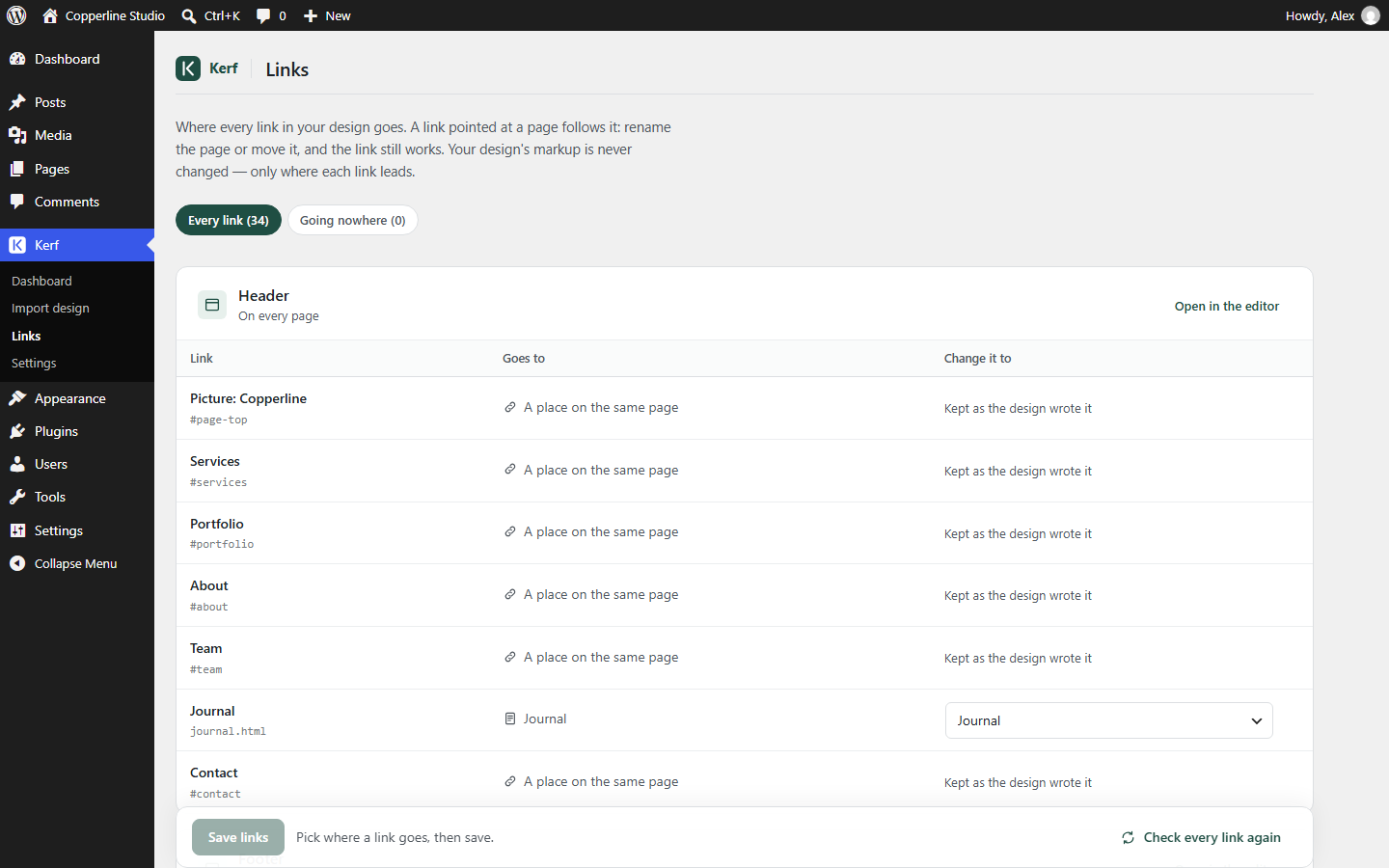
Select your header or <nav> block in the editor to open the Menu panel in the sidebar. From there you can:
- Rename any menu item’s label.
- Point an item at any WordPress page, post, or custom URL.
- Reorder items up or down, duplicate an item (cloning the designer’s exact classes), or remove items.
Managing destinations under Kerf → Links
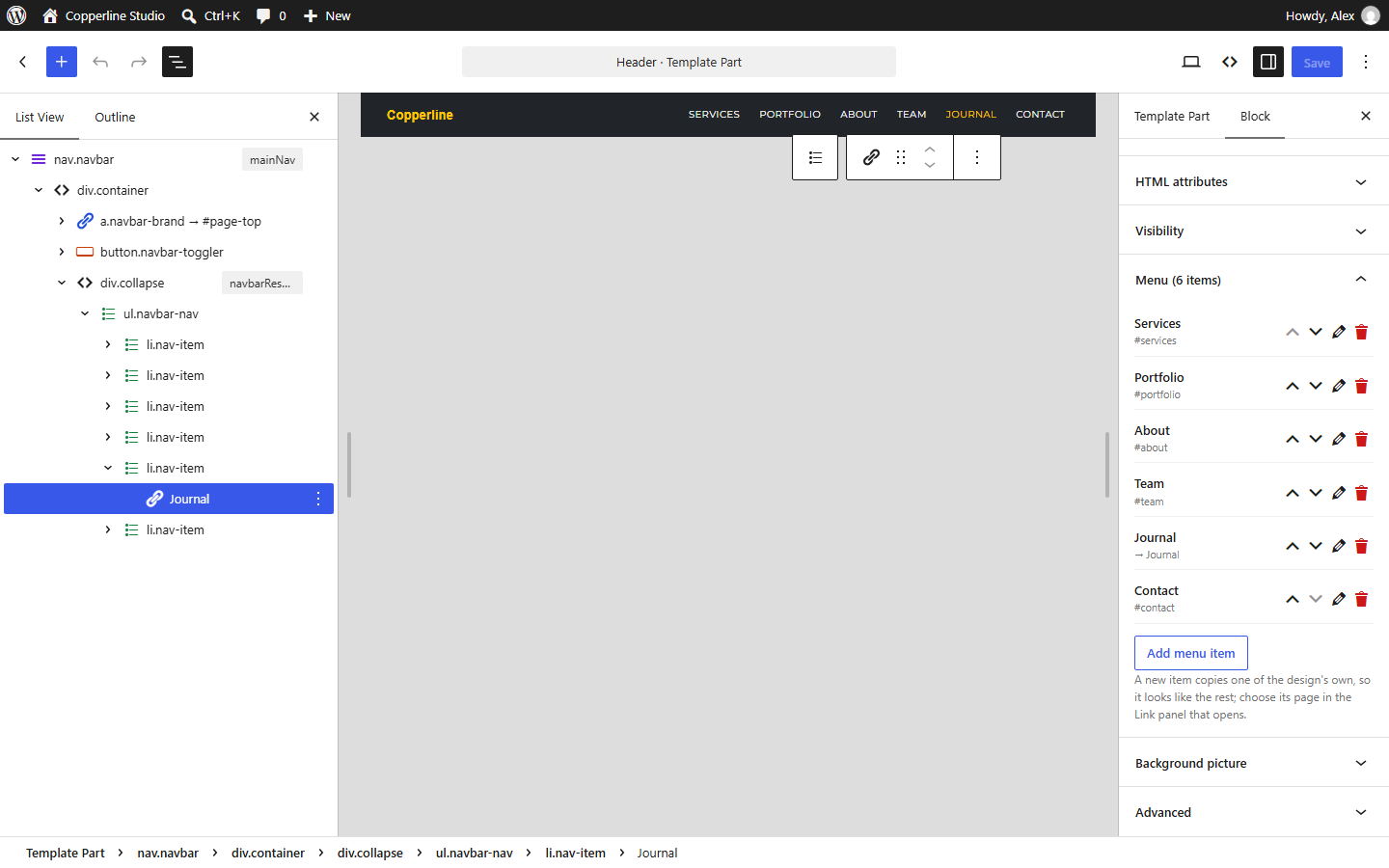
At import time, Kerf automatically matches internal links (like about.html or /services) against your existing pages. External URLs, #anchor jumps, mailto:, and tel: links are left untouched.
Open Kerf → Links at any time to see every internal link across your site:
- Any link whose destination page doesn’t exist yet is flagged in the menu badge.
- Point an unmatched link to an existing WordPress page from the dropdown, or click Create page to generate a matching draft page at that slug in one click.